🧙♂️ Just like magic!
Your A2P Compliance Kit is Ready!
Thanks for using A2P Wizard. Below is everything you need to get your campaign approved.
🔁 Ready to submit another?
Click Here to Start Over →1️⃣ Step One
Your compliance website is ready below. Then jump down, pick your registration type, and follow the exact steps for it.
Your custom-built, domain-matched compliance website is ready. It's designed to match opt-in requirements and help your campaign get approved. Hero images on the website may take up to 60 seconds to load.
Use the Copy & Paste sections further down to fill out your application exactly.
🚀 Oops! You've Hit Your Rate Limit
You've reached the limit for free website generations. Upgrade now for unlimited submissions and priority support!
⚡ Upgrade Now for Unlimited AccessReceived this message in error? Please contact admin@a2pwizard.com
🧙♂️ The Wizard Is Still Working His Magic
We're under heavy volume right now, but your submission was received and is safe. Tap below and we'll check again.
Been waiting more than a few minutes? Email admin@a2pwizard.com and we'll pull it up manually.
⚠️ Something Went Wrong With Your Submission
Your results didn't come through on our end. This is usually a hiccup during the redirect, not anything you did. The quickest fix is to submit again.
💡 Tip: Some browsers, ad blockers or privacy extensions can block our form from passing your submission through. If it happens again, try a different browser (Chrome works best) or pause your ad blocker for this page.
🔄 Resubmit NowHit a limit when resubmitting, or want us to track down the original? Email admin@a2pwizard.com with the business name and we'll sort it out.
💳 Whoops, Your Payment Didn't Go Through
Your last payment for A2P Wizard failed, so this submission is on hold. Your details are saved. Update your payment method and we'll get you moving again.
💳 Update Payment MethodOnce done, just refresh this page and your results will populate.
Already fixed it? Email admin@a2pwizard.com and we'll push this one through.
💡 Read This First (applies to everyone)
Note: Brand rejections have nothing to do with A2P Wizard. If your brand was outright rejected, it typically means there's an address mismatch or the EIN is invalid. Verify against your client's CP575 form and enter that information exactly as it appears.
However, if you already have a brand approval and then use A2P Wizard, there will be a mismatch. You'll need to open a support ticket with HighLevel (or your CRM's support) and ask them to wipe the brand registration and start fresh. It only takes about 5 minutes to wipe the brand and get it re-approved, but skipping this step can cost you weeks of headaches.
⚠️ Note on Brand Clearing
HighLevel is encountering issues with actually clearing the brand. After submission, verify with support that the brand was truly cleared, not just the GUI. Ask them: "What website do you see on the Twilio brand registration backend?" If they return a different website than the one generated above, or you get rejected for "unverifiable website," it's because they cleared the brand in HighLevel but not the actual Twilio brand application. We strongly recommend creating a new sub-account or using A2P Wizard on a fresh sub-account.
Registering a client with a DBA? Don't use it. Use only what's on their CP575 form. Companies change DBAs all the time, but the legal business name stays the same, use that to register for A2P and you'll see far more approvals.
Registering the legal name and then using the DBA in marketing has zero impact on deliverability. They're the same company. For proof: Subway is legally named Doctor's Associates. We can assure you they aren't sending you texts as "Doctor's Associates."
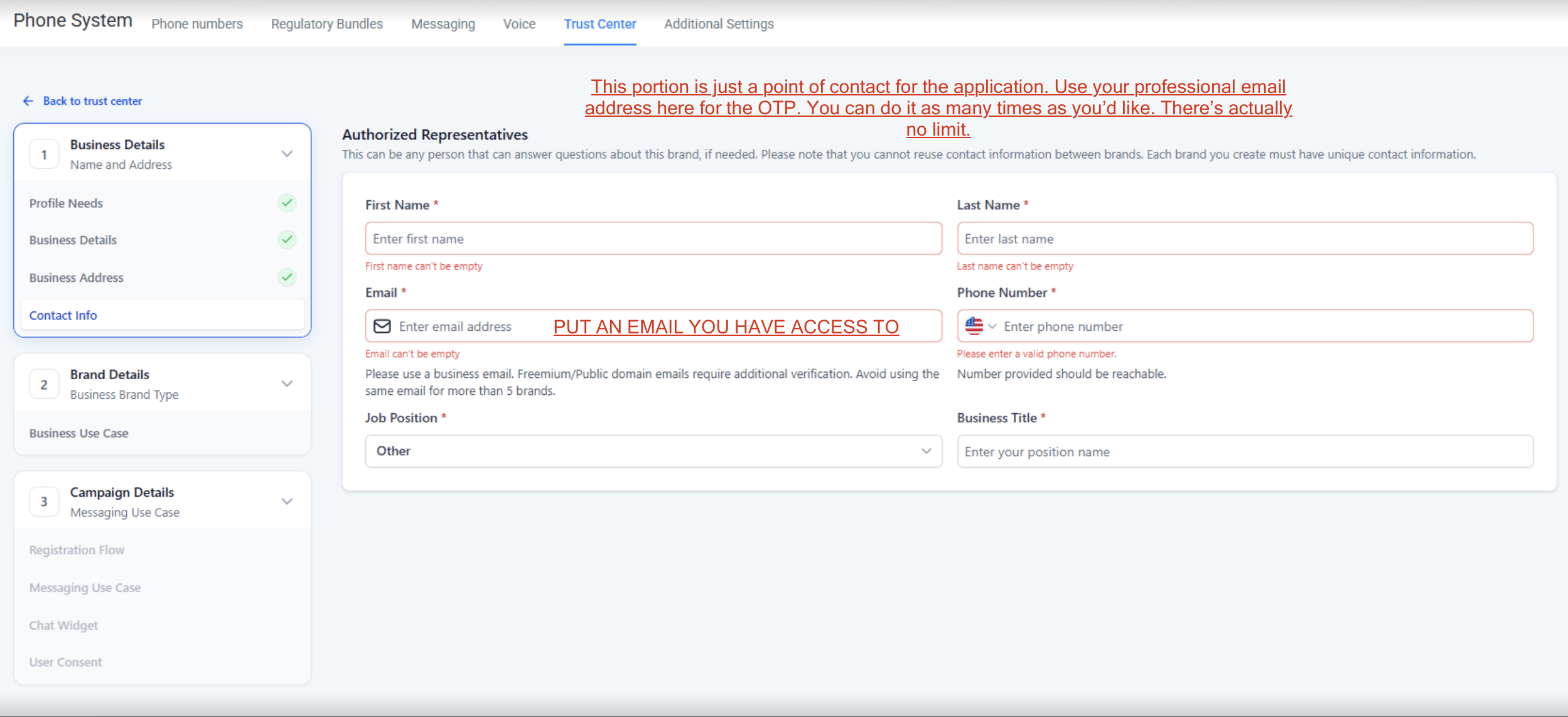
NEW! This is a frequently asked question. The "Authorized Representative" section is just a point of contact for the application, do not put the A2P Wizard-generated email here. Use your agency's email or any professional email you have access to for receiving the OTP. The rest of the information can be your client's. Despite what the GUI says, there is no limit of 5, you can reuse your agency's email an unlimited number of times until we say otherwise.
NEWHighLevel users: seeing a "chat widget setup" screen? Read this first
HighLevel is rolling out a new registration flow, so you'll see one of two screens when you start. Either way, the rule is the same: A2P Wizard uses Manual Setup. You do NOT need the chat widget, don't install it anywhere.
If you see this (older screen)
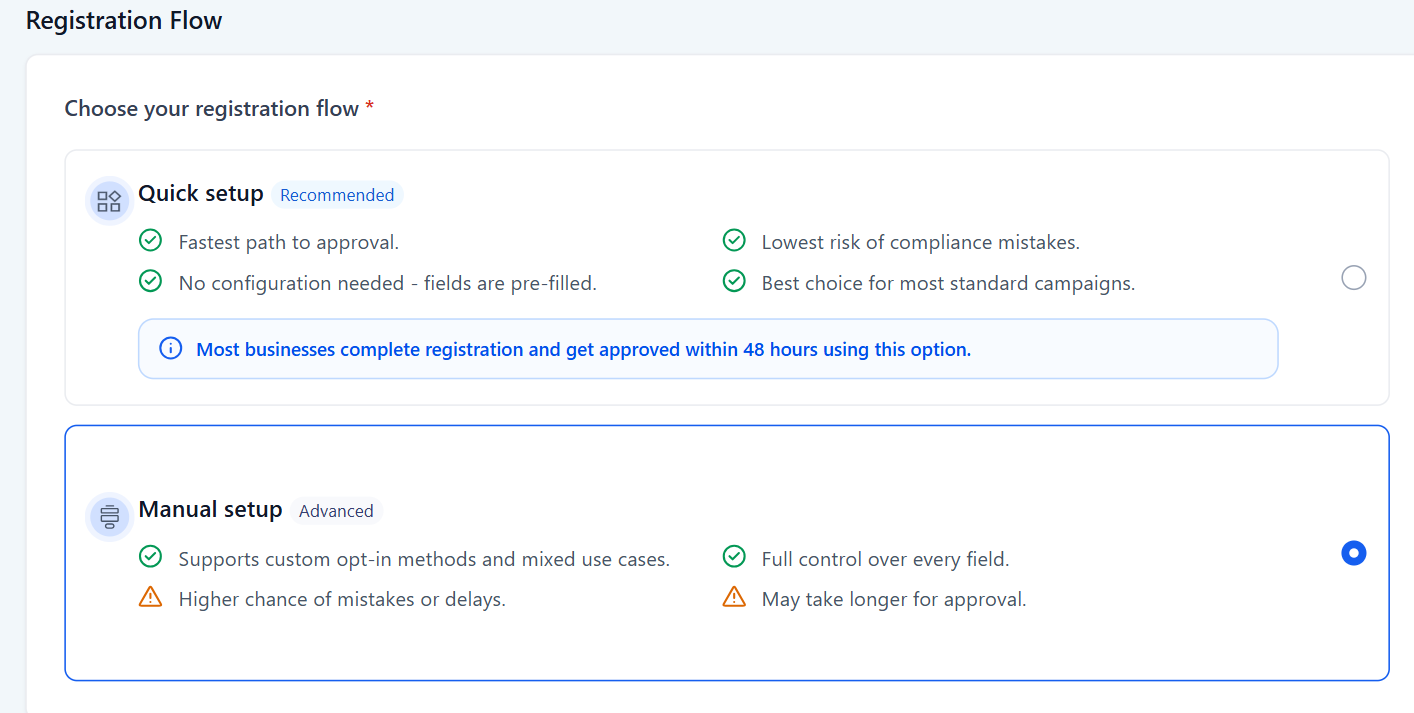
Choose Manual Setup.
If you see this (newer screen)
HighLevel pushes the chat widget as "recommended." Ignore it, scroll to the very bottom of the page and click the small "Switch to manual setup" link (that's what the video shows).
2️⃣ Step Two: Select Your Registration Type
👇 Tap one of the options below and your exact step-by-step instructions will appear. Nothing below applies until you pick your type.
✅ Good news: the details you already submitted work for every registration type. Just pick how you're registering below and follow those exact steps.
 Registration Templates
Direct to Carrier
👆
Select your registration type above
Your exact, copy-and-paste step-by-step will appear right here.
📍 Local Registration — HighLevel
Standard 10DLC local number registration inside HighLevel.
🆕 Find the "Switch to manual setup" link (do NOT use the chat widget setup)
HighLevel now defaults to a "recommended" chat widget setup and has moved manual setup to a small link at the very bottom of the page that says "Switch to manual setup." Scroll all the way down and click it, that's the flow A2P Wizard is built for.
Don't be misled by the warning next to it. HighLevel says manual setup "requires longer approval times," but that only applies if you're filling it out yourself without guidance. With A2P Wizard, every field is pre-written and optimized for approval, you're just copying and pasting. Manual setup is the most reliable path to A2P compliance without needing access to your client's actual website.

Do not skip - #1 cause of rejection
⛔ Select "Low Volume Mixed" or your campaign WILL be rejected
This is the single most common reason campaigns get denied. Picking anything else (Customer Care, Marketing, 2FA, etc.) gets you rejected. It must say Low Volume Mixed, exactly as shown above.
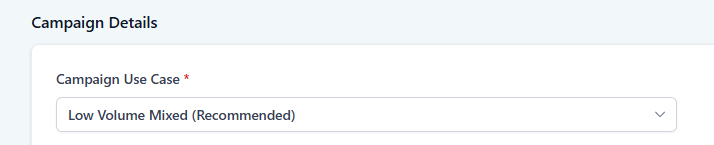
🛑 If you glaze over this and select anything else, your campaign will fail. No exceptions.
✅ Next: scroll down to "Copy These Exactly Into Your Application" and paste each field into the matching section of your campaign.
📞 Toll-Free Wizard — HighLevel
Follow each step below to register your toll-free number.
👤 Registering as a sole proprietor? Same setup, just skip the EIN field, change the entity type to Sole Proprietor, and make sure your site is yourname.nebulabrandgroup.com
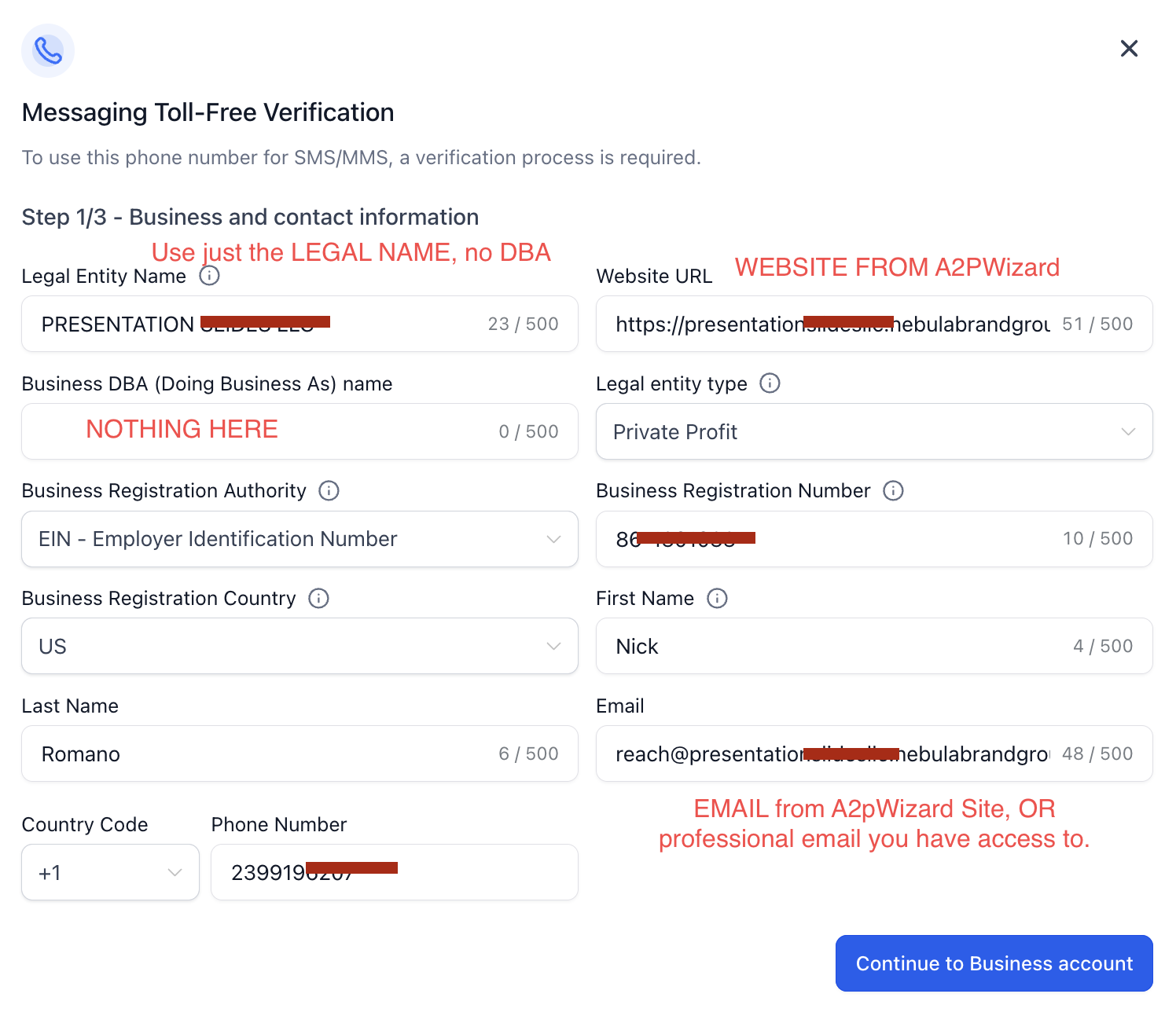
TF Step 1: Business & Contact Information
- Business DBA: Leave this blank.
- Legal Entity Type: Select Private Profit
- Email: If you have an EIN, use the email below or any professional email. No EIN? See the rule below.
Legal Entity Name:
Loading...
Website URL:
Loading...
Email:
Loading...
🛑 IMPORTANT: No EIN? The email type decides pass or fail.
No EIN (sole proprietor)? You MUST use a personal Gmail here. A professional or business email will cause the registration to fail.
Have an EIN? Use the A2P Wizard email above (or any professional email you have access to). It works fine for toll-free.
✅ No EIN, use this
❌ No EIN, not this
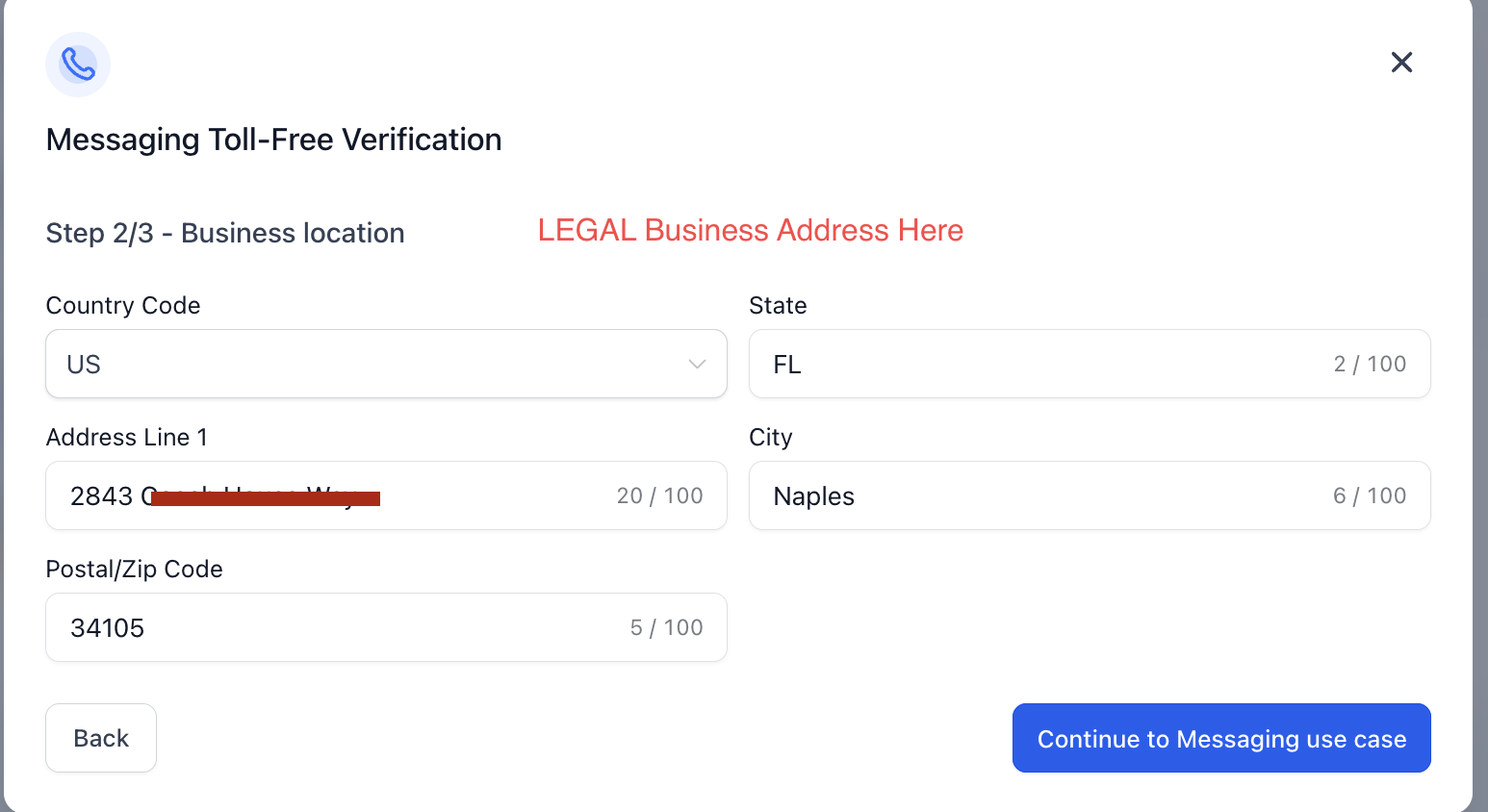
TF Step 2: Business Location
Enter your legal business address exactly as it appears on your CP575 form. This must match what the IRS has on file.
TF Step 3: Messaging Use Case
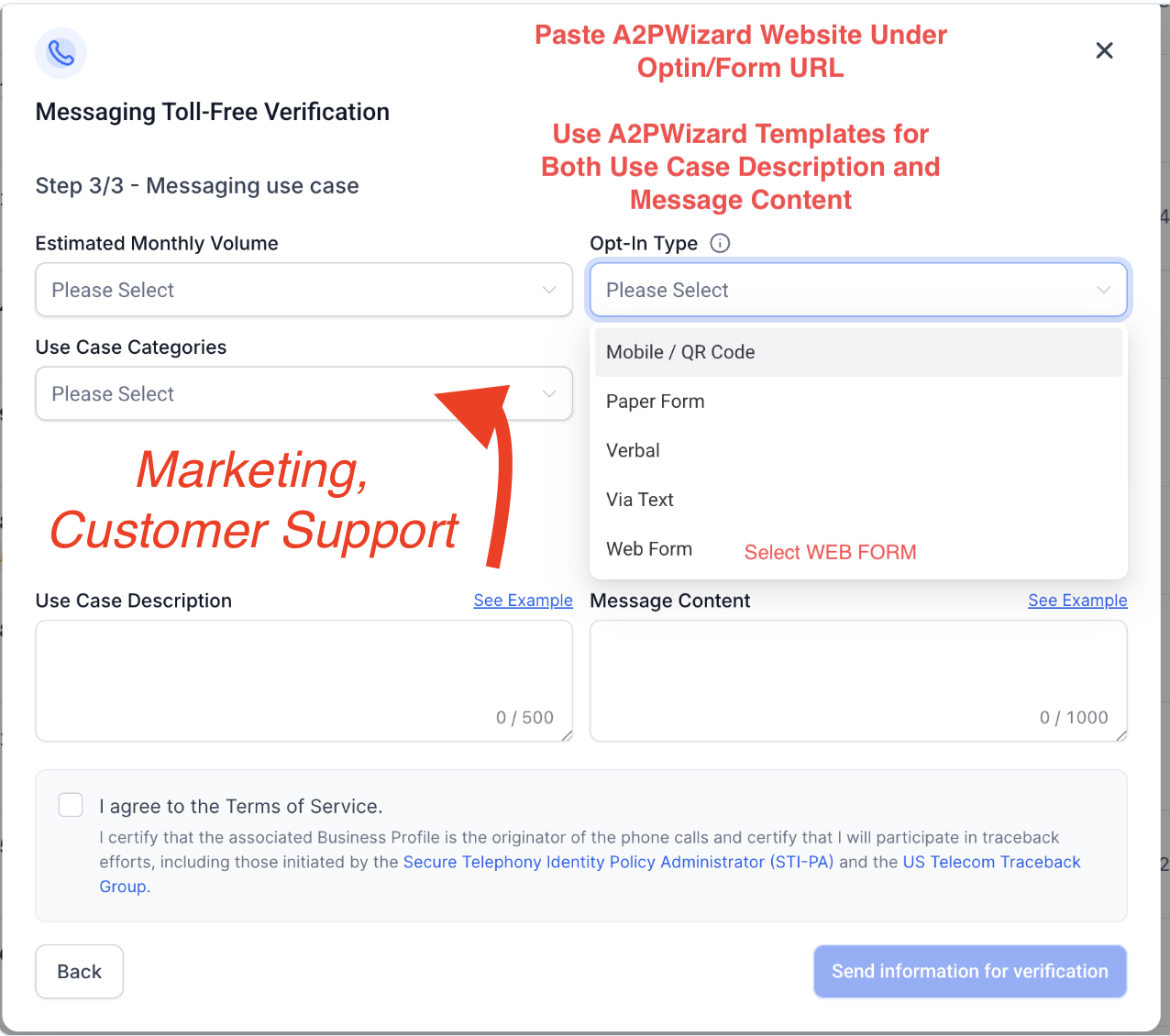
- Estimated Monthly Volume: Select 1,000
- Opt-In Type: Select Web Form
- Use Case Categories: Select BOTH Marketing and Customer Support
🛑 You MUST select "Web Form" as the Opt-In Type. If this is not selected, your campaign will fail.
🛑 You MUST check BOTH Marketing and Customer Support under Use Case Categories. Selecting only one, or picking a different category, gets you rejected.
Opt-In Workflow Image URL:
Loading...
Use Case Description:
Loading...
Message Content:
✅ Copy the entire message content below in one shot. Do not edit or insert values.
Loading...
✅ The use case, sample messages, and opt-in copy for toll-free are all included in this section above. Toll-free is self-contained, you do not need the shared copy-paste block below.
👤 Sole Proprietor — HighLevel
Same as a local registration, with a few entity-specific differences.
🛑 Sole prop with no EIN will ONLY work if the individual has no active EIN. If you're getting a brand rejection, they likely have an EIN associated with them somewhere. In that case, follow the same steps below but select that the business HAS a tax ID and enter it in the appropriate fields.
If the EIN is associated with a business name and not just their personal name, you'll need to register the business, not their name. A sole prop EIN registration will only work if they applied for the EIN using their full name.
Getting Started
- Use the client's FULL NAME (no middle initial) as the "Legal Business Name"
- First step is to purchase a phone number and complete verification
Business Profile Setup
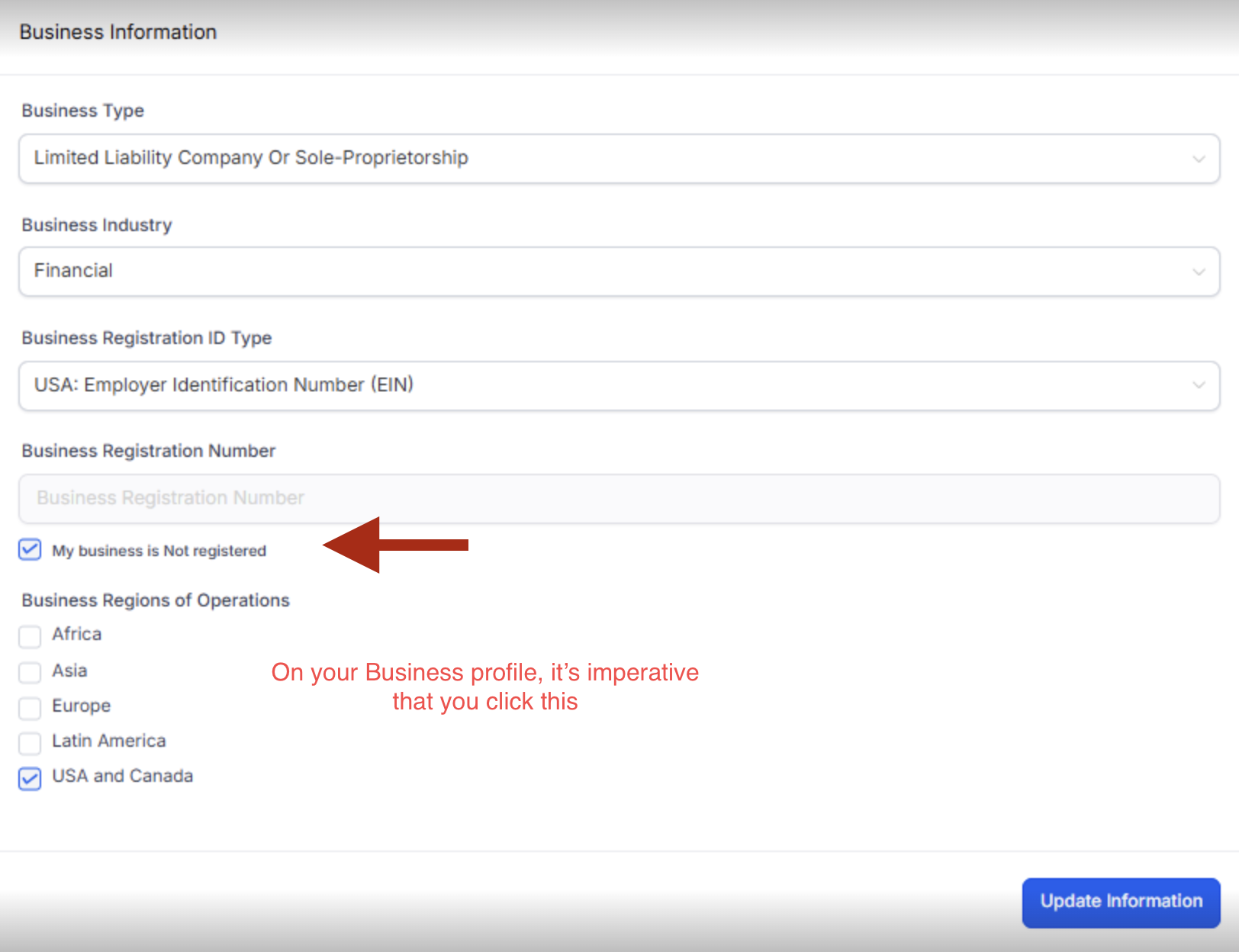
Go to Settings > Business Profile > Business Information. You must check "My business is Not registered."
🛑 If you do not check "My business is Not registered," the application will fail.
Business Brand Details
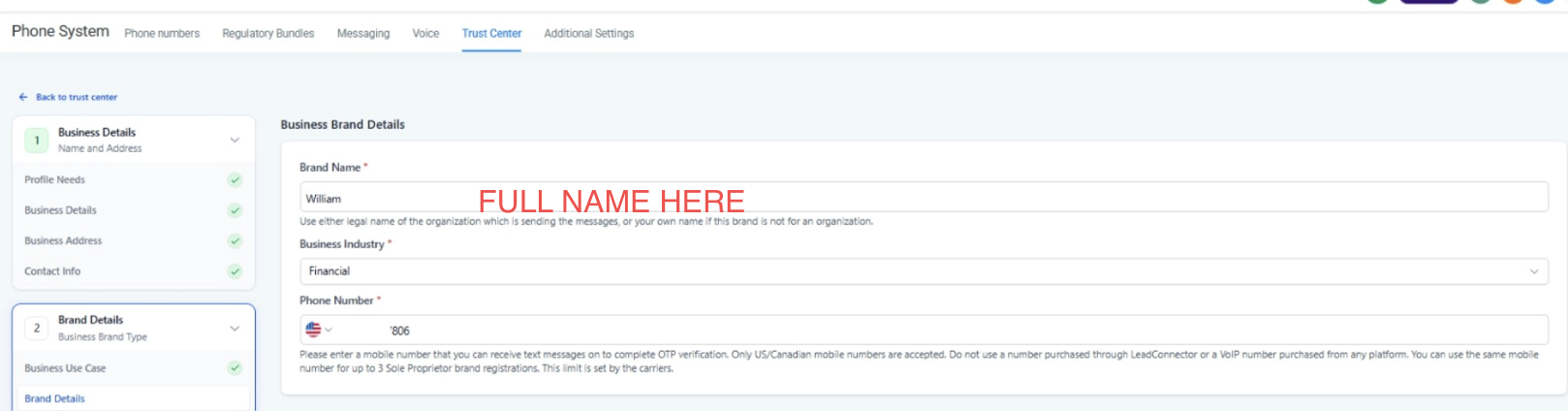
The Brand Name should be the client's full name.
Authorized Representative
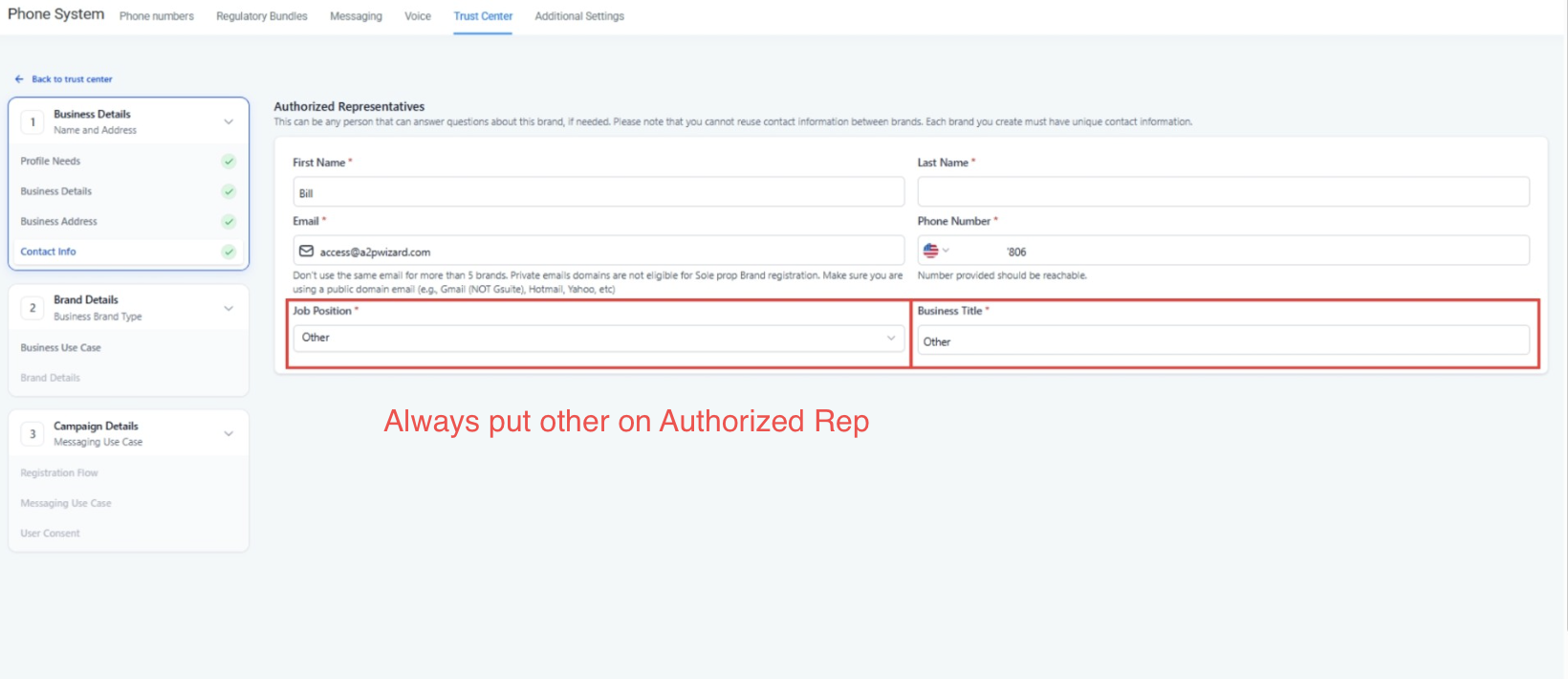
Use the name of the individual being registered. For Job Position and Business Title, always select "Other" for both.
For phone verification, The Campaign Registry needs to text a number for OTP. It says there's a limit of 3, but we've seen the same number used 20+ times without issue.
🛑 IMPORTANT: The email type decides whether you pass or fail.
No EIN? You MUST use a personal Gmail in the Authorized Representative email field. A professional or business email will cause the application to fail.
Have an EIN? A professional email can work, but we recommend trying a personal Gmail first. If you get a brand rejection, switch to the other.
✅ Use this
❌ Not this (no EIN)
Then: Manual Setup & Campaign Use Case
Use manual setup for the campaign, scroll to the bottom of HighLevel's chat widget setup page and click the small "Switch to manual setup" link (see the note in the Local path above for a screenshot).
Read carefully - depends on EIN
⛔ Campaign Use Case: get this right or you'll be rejected
What you do here depends on whether the Use Case field is locked or selectable:
✅ If it shows "Sole Proprietor" and is locked
That's a true sole prop (no EIN). Leave it as "Sole Proprietor." You can't change it and you don't need to. This is correct, don't panic.
🛑 If you CAN select a Use Case (has EIN)
If the field lets you pick, selecting anything else (Customer Care, Marketing, 2FA, etc.) gets you rejected. It must say Low Volume Mixed.
✅ Next: scroll down to "Copy These Exactly Into Your Application" for the use case, sample messages, and opt-in copy.
🔧 Twilio Direct
Registering A2P/10DLC directly in the Twilio console instead of through a CRM.
Everything you need is in this section, in the order Twilio's console asks for it. Complete the steps top to bottom.
🎥 Watch the Twilio Direct video guide
Follow along start to finish. Every field below is covered in the walkthrough.
Video not loading? Open it on YouTube →
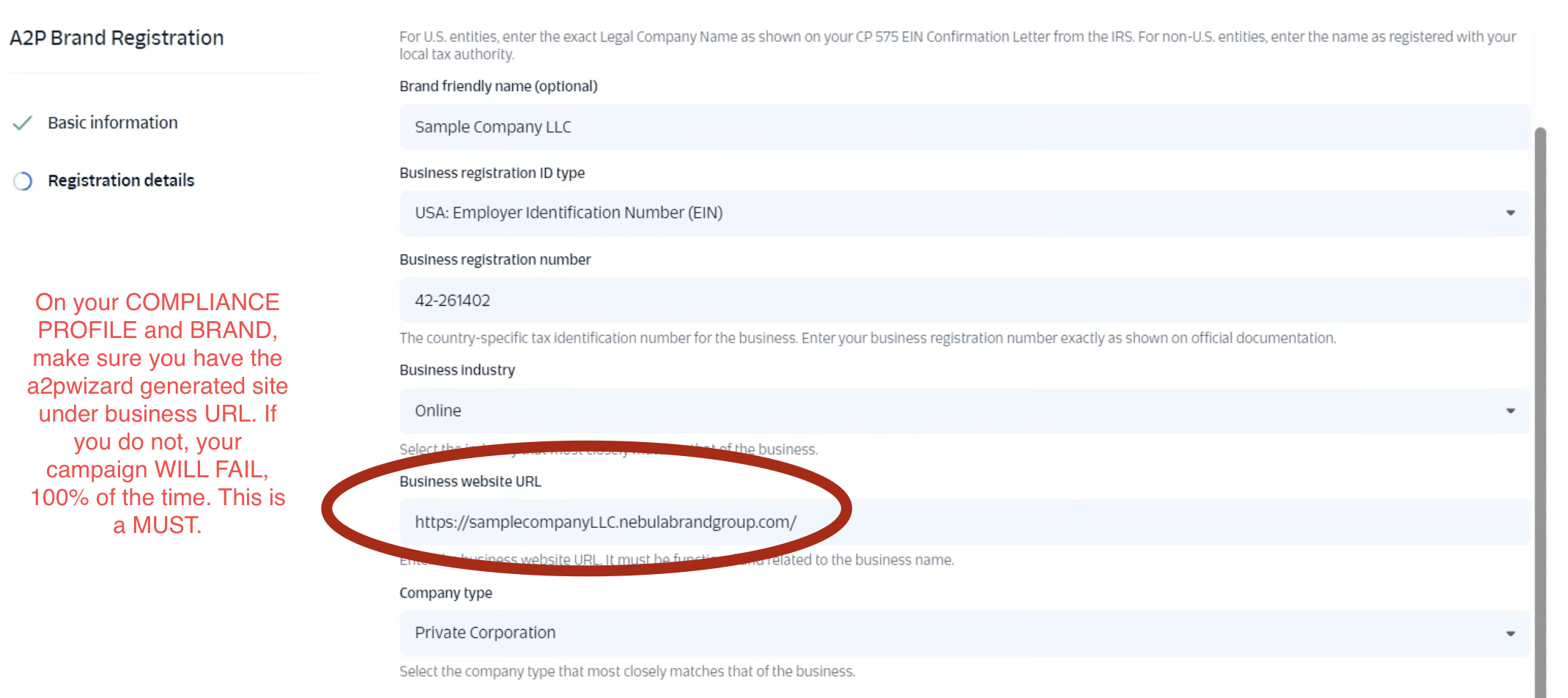
Follow the GOLDEN RULE when registering the brand: the A2P Wizard-generated website MUST be listed on both the compliance profile and the brand, or your campaign will fail.
👤 Registering as a sole proprietor / individual? Same flow, with these differences: set the entity type to Sole Proprietor, skip the EIN, use the individual's full name as the business name, and use a personal email for the contact. (Twilio's exact field names may differ slightly; the full step-by-step is coming here soon.)
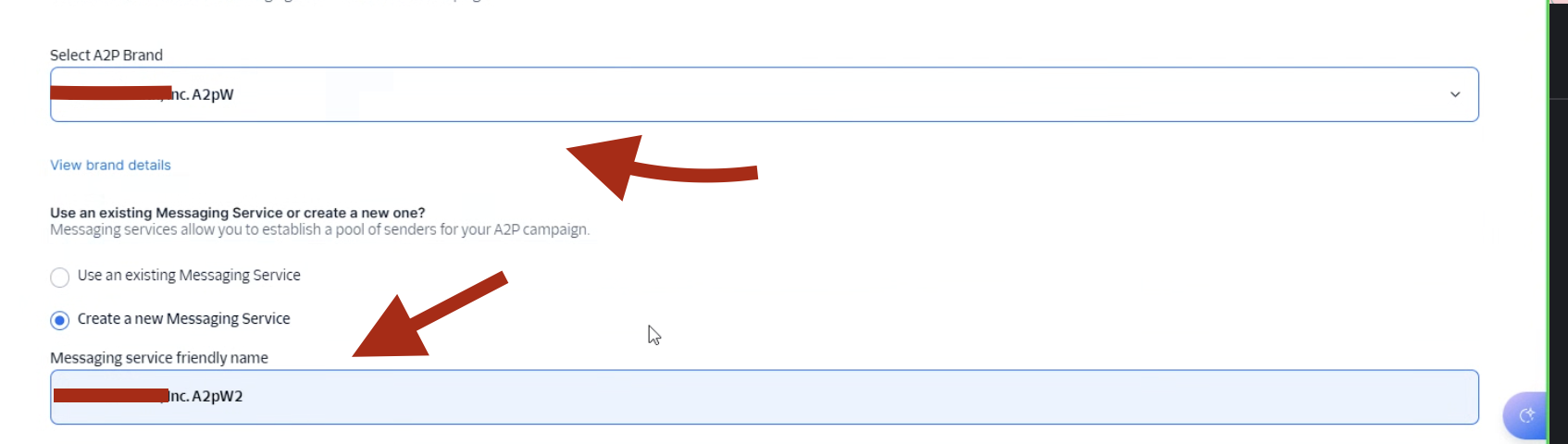
🛑 IMPORTANT: When registering the campaign, select the approved brand.
Make sure your brand has the A2P Wizard website on it before continuing. Then hit "Create new Messaging Service."
Do not skip - #1 cause of rejection
⛔ Select "Low Volume Mixed" or your campaign WILL be rejected
This is the single most common reason campaigns get denied. Picking anything else gets you rejected. It must say Low Volume Mixed, exactly as shown above.
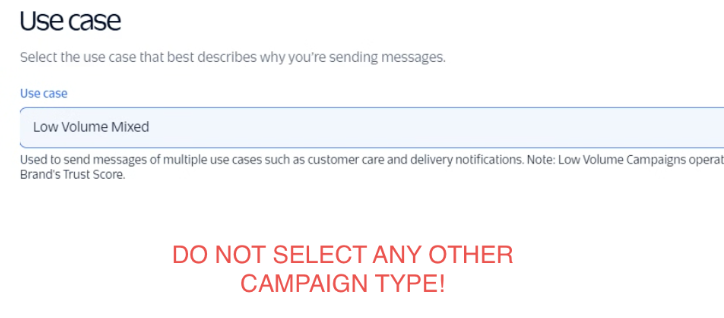
🛑 If you glaze over this and select anything else, your campaign will fail. No exceptions.
Step 1: Campaign Description
Paste exactly as-is, do not edit or insert values.
Loading...
🛑 Next, Twilio asks "How do recipients consent to receive messages?" with a few radio buttons. Select "Web Form." If this is not selected, your campaign will fail.
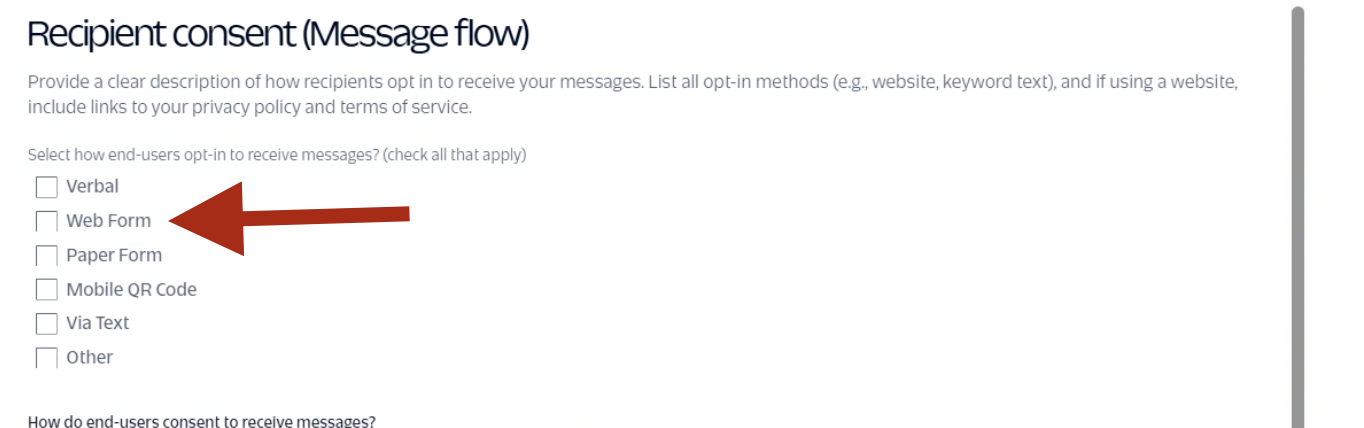
Step 2: How do users consent to receive messages?
Paste exactly as-is, do not edit or insert values.
Loading...
Step 3: Privacy Policy & Terms Links
Privacy Policy Link:
Loading...
Terms Link:
Loading...
Step 4: Sample Messages
Twilio requires all 5. Paste exactly as-is, do not edit or insert values.
Sample Message #1:
Loading...
Sample Message #2:
Loading...
Sample Message #3:
Loading...
Sample Message #4:
Loading...
Sample Message #5:
Loading...
Step 5: Opt-in Keywords
When asked for opt-in keywords, enter both:
START, SUBSCRIBE
Step 6: Opt-In Message
⚠️ Do NOT modify this message. Paste it exactly as shown, including the brackets. [privacy_policy_link] and [terms_link] are intentional template placeholders. Do not replace them with actual URLs.
Loading...
Step 7: Message Contents
✅ Check ONLY these two boxes:
- Messages will include embedded links
- Messages will include phone numbers
🛑 Do NOT check either of these:
- Content related to direct lending or loan arrangement
- Age-gated content
Checking either of those two triggers extra vetting and is a common cause of rejection. Leave every other box unchecked as well.
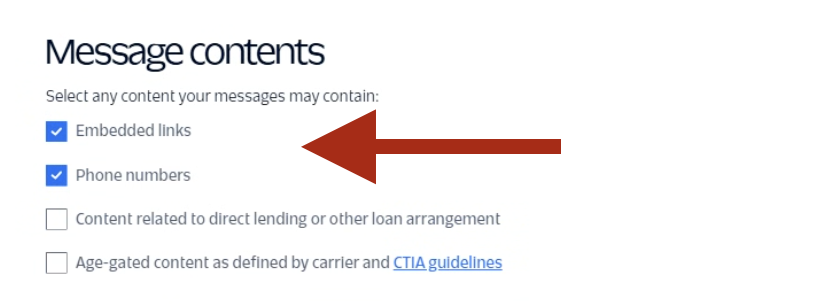
Step 8: Sample of Embedded Link
When Twilio asks for a sample link, use your website link.
Loading...
 Close.com Registration
Registering A2P/10DLC inside Close. There are two applications to complete, in order.
🎥 Watch the Close.com video guide
Follow along start to finish. Every field below is covered in the walkthrough.
Video not loading? Open it on YouTube →
📍 Where to find it in Close
Communication → Phone and Voicemail → US Compliance
You'll see two applications there: Trusted Calling (step 1) and TrustedSMS (step 2). Complete them in that order.
Step 1: Trusted Calling
Most of this form is self-explanatory, just your business details. Two fields matter for approval:
The field that decides approval
⛔ Business Website must be your A2P Wizard site
In the Business Website field, enter the A2P Wizard-generated website below. Do not use the client's real website, it must match what gets registered on the brand.
Loading...
You'll need Close to purge the application so you can start fresh. Email support@close.com with the message below.
Hi there, we have an incorrect website on our trusted calling application and would like to start over, please purge our a2p application as if we were starting fresh. Thank you
🛑 Business Address: use the REGISTERED address
Enter the company's registered address, which is often different from where they actually operate day to day. A mismatch here is a common rejection cause.
Not sure what's on file? Look the company up on OpenCorporates and use the address listed there.
Step 2: TrustedSMS
Once Trusted Calling is submitted, complete TrustedSMS. Work top to bottom, the fields below are in the same order Close asks for them.
🛑 Opt-in / Consent Method
For "How do end-users consent to receive messages?" select "Through a webform, booking link, sign-up page, or similar (Recommended)". Do not select Verbally.
Share a direct link to your privacy policy:
Loading...
Share a direct link to your terms of service:
Loading...
Campaign Description
Paste exactly as-is, do not edit or insert values. (Close auto-rejects anything under 40 characters, this is well over.)
Loading...
Campaign Attributes
Close asks whether your messages include age-gated content or relate to direct lending or loan arrangements. Answer both honestly based on what your business actually does.
Carriers review these selections and misreporting can get your campaign suspended, so don't guess. If either applies to you, check it and expect additional vetting. If neither applies, leave them unchecked and continue.
Sample SMS Messages
✅ Close accepts 2 to 5 sample messages. Submit all 5 below, more samples give the carriers a fuller picture and approve more reliably.
Sample Message #1:
Loading...
Sample Message #2:
Loading...
Sample Message #3:
Loading...
Sample Message #4:
Loading...
Sample Message #5:
Loading...
 TextGrid Registration
Registering A2P/10DLC directly through TextGrid. Complete the steps top to bottom.
👤 Registering as a sole proprietor / individual? Same flow, with these differences: set the entity type to Sole Proprietor, skip the EIN, use the individual's full name as the business name, and use a personal email for the contact. (TextGrid's exact field names may differ slightly; the full step-by-step is coming here soon.)
Do not skip - #1 cause of rejection
⛔ Use Case: pick Low Volume Mixed, then both sub-use cases
Select Low Volume Mixed as the main use case first. Then, underneath it, pick both sub-use cases:
🛑 Both sub-use cases (Customer Care AND Marketing) must be selected under Low Volume Mixed. Picking the wrong use case is the #1 reason campaigns get rejected.
Step 1: Campaign Description
Paste exactly as-is, do not edit or insert values.
Loading...
Step 2: Call to Action / Message Flow
⚠️ This is the field TCR vetting partners enforce most heavily. Paste the copy below exactly, it describes how users give explicit consent.
Loading...
Step 3: Privacy Policy Link
Loading...
Step 4: Terms & Conditions Link
Loading...
Step 5: Sample Messages
TextGrid requires all 5. Paste exactly as-is, do not edit or insert values.
Sample Message #1:
Loading...
Sample Message #2:
Loading...
Sample Message #3:
Loading...
Sample Message #4:
Loading...
Sample Message #5:
Loading...
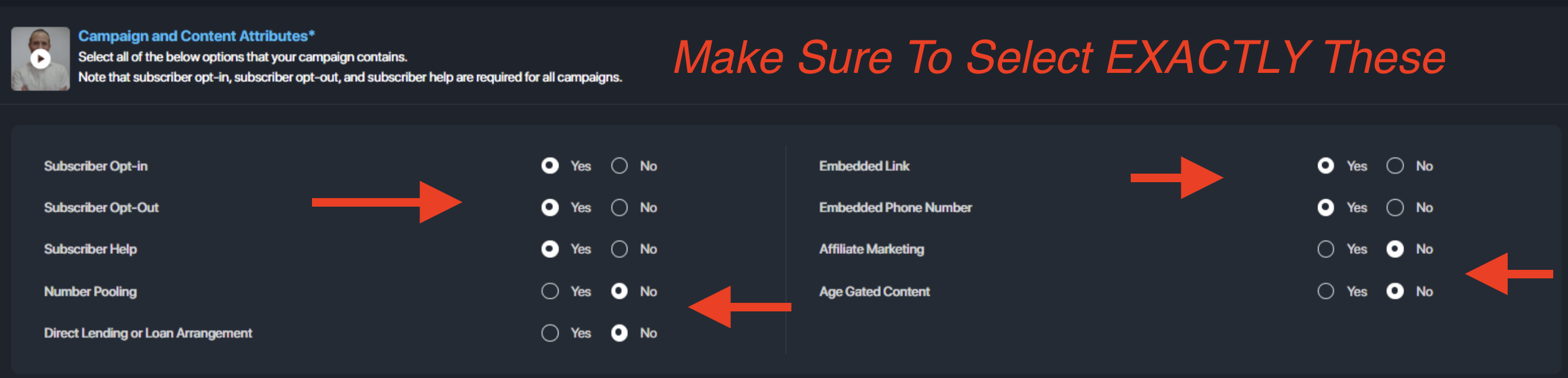
Step 6: Campaign & Content Attributes
🛑 Select EXACTLY these. Getting any of them wrong can cause a rejection.
- Subscriber Opt-in: Yes
- Subscriber Opt-Out: Yes
- Subscriber Help: Yes
- Number Pooling: No
- Direct Lending or Loan Arrangement: No
- Embedded Link: Yes
- Embedded Phone Number: Yes
- Affiliate Marketing: No
- Age Gated Content: No
💡 Tips for Approval
- Submit between 8am–11am on weekdays
- Use a fresh number/campaign if resubmitting
- Brand approval usually takes ~15 minutes
- Follow all best practices to avoid delays
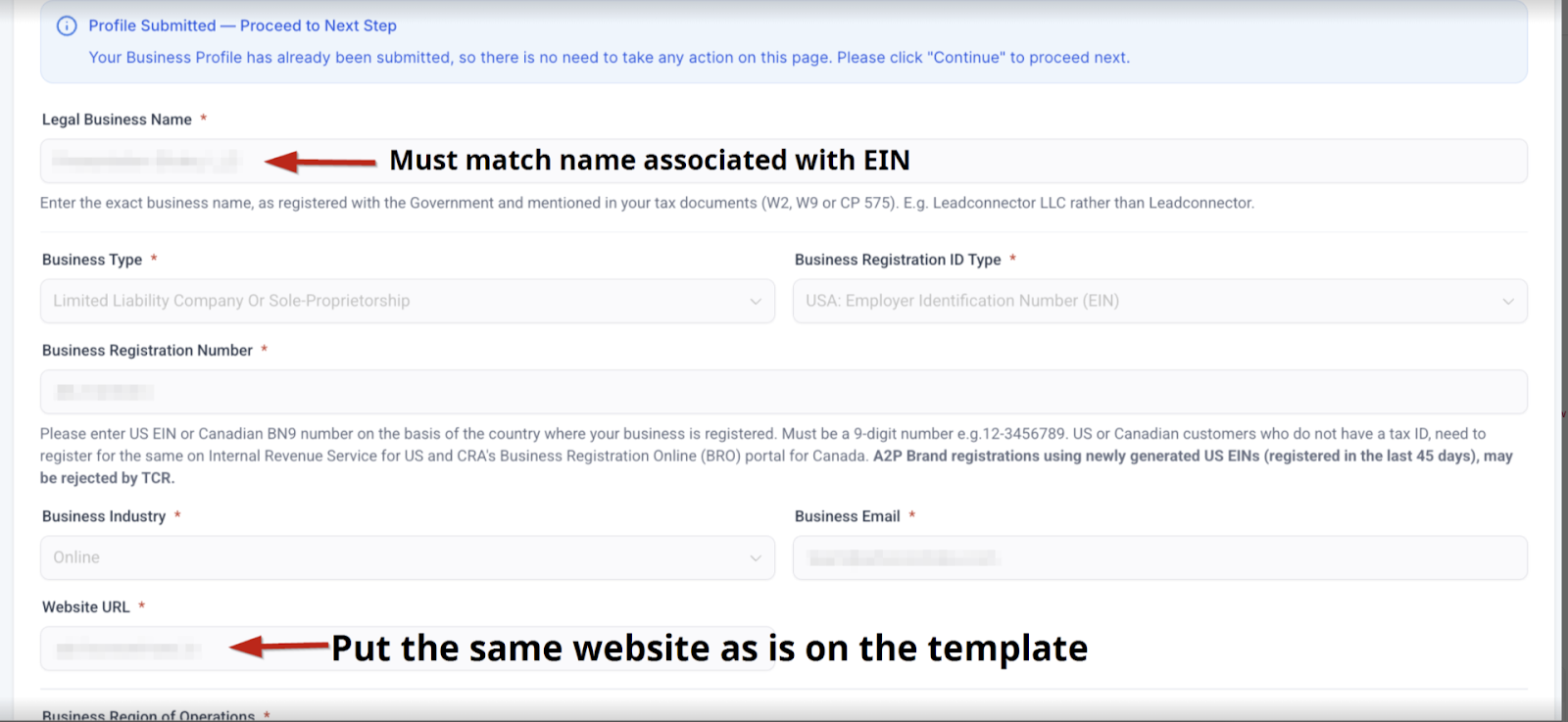
⚠️ Website not generating? Make sure you did not use special characters in the company name. Special characters do not work for web addresses. 🙂
⚡ Want unlimited submissions & priority Slack support? Email admin@a2pwizard.com →
🔁 Ready to submit another?
Click Here to Start Over →